
If your cards are unnamed, this guide will be especially useful, since they’re a very cost-effective option: the same physical card can be reassigned from one employee to another in just a few clicks, without needing to reprint or replace it.
If your cards are personalized with names, you’ll mainly need the Assigning Cards section.
This guide walks you through:
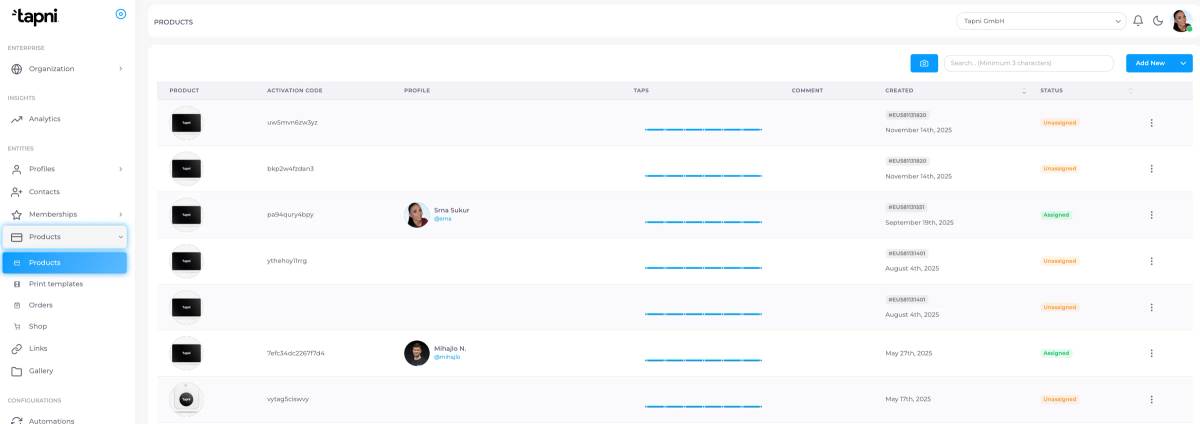
Once you open Products, you’ll see a full list of your products/cards. In this list, you can clearly see which cards are Assigned and which are Unassigned.
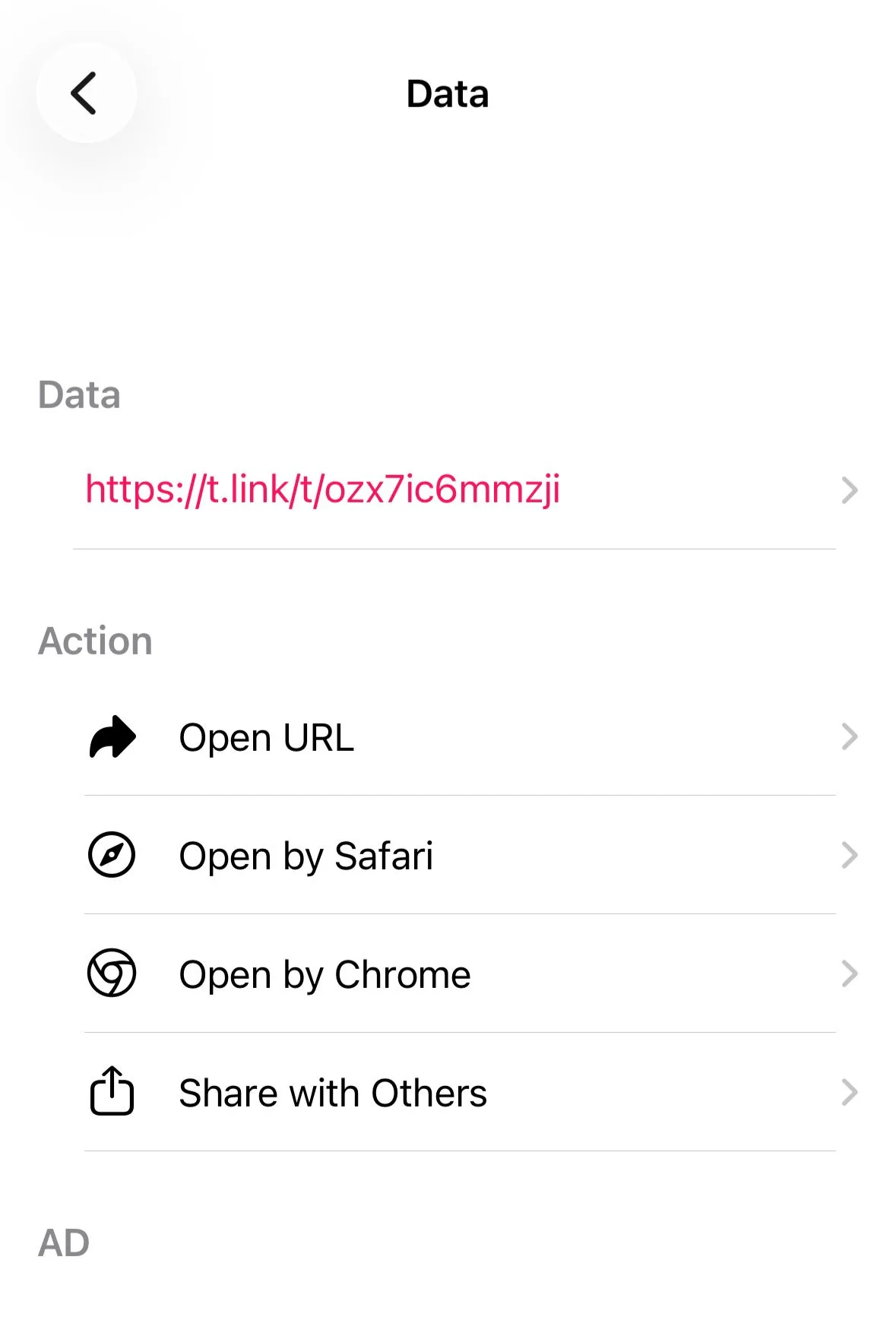
Way to identify the correct card is by using a QR code scanner app (any QR scanning app works). Make sure the app shows the activation code / activation link when you scan the card.
Example: after scanning, you may see a link like:
t.link/ozx7ic6mmzji
In this example, ozx7ic6mmzji is the activation code.
If the card is already assigned to an employee, you can reassign it in the same place:
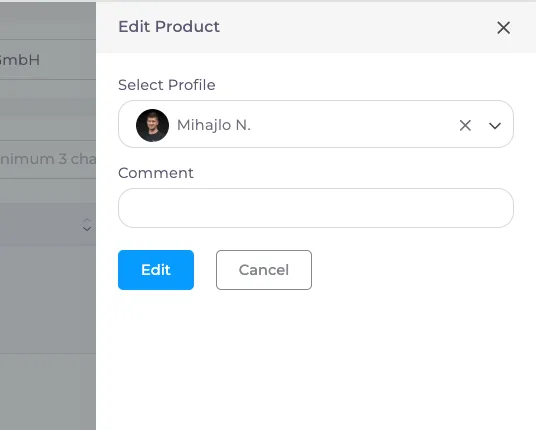
After you reassign the card, if an employee is leaving the company you can also remove their profile from the Admin Dashboard:
This will remove their Tapni profile from the Admin Dashboard.
Browse our comprehensive product guides and documentation



Stella-Klein-Löw-Weg 8, 1020 Vienna, Austria