





Buying a digital business card for every employee is easy. Getting people to actually use it at the next meeting, trade show or client lunch is the hard part. Most rollouts don't fail because of the technology. They fail because nobody owned the setup, profiles were half-filled, and the first time a salesperson tried to tap a card in front of a prospect, it showed an old phone number.
This guide is for HR, marketing and sales ops teams that are choosing a digital business card for companies and want a rollout plan that sticks. It walks through seven steps: a pilot, admin setup, templates and branding, onboarding, adoption, measuring usage and offboarding. A checklist you can copy sits at the end. The examples use Tapni, a digital business card and lead capture platform that is part of Tapstack, but the plan works with any team platform.
Why team rollouts of digital business cards stall
When a company switches from paper to digital cards, the same three problems come up again and again:
- No single owner. IT thinks it is a marketing tool, marketing thinks it is an HR tool, and sales just wants it to work.
- Inconsistent profiles. Each employee designs their own card, so the brand looks different on every phone, and job titles go out of date.
- No reason to change habits. If the card is not in the places people already work (their phone wallet, their email signature, their video calls), it gets forgotten.
A good rollout fixes all three before the cards reach employees. That is why most of the work below happens in the admin dashboard, not in the app.
Step 1: Run a two-week pilot with one team
Don't launch to the whole company on day one. Pick one team that meets people often, usually sales, business development or the events team, and give them two weeks.
What to decide before the pilot
- An owner. One person (often in marketing or sales ops) who has admin rights and makes the final call on design and links.
- Success criteria. For example: every pilot user has a complete profile, has added the card to their phone wallet, and has shared it in at least one real meeting.
- The CRM question. Decide early whether leads should flow into your CRM. If they should, connect it during the pilot, not after the rollout.
Collect feedback at the end of week two: what was confusing, which links people actually needed, and where the card was missing (email, video calls, events). Fix those things in the templates before you invite everyone else.
Step 2: Set up the admin dashboard
A team platform should let one person manage everyone. In Tapni, this happens in the Business Admin Dashboard, which is only available to admins.
Create profiles and send logins
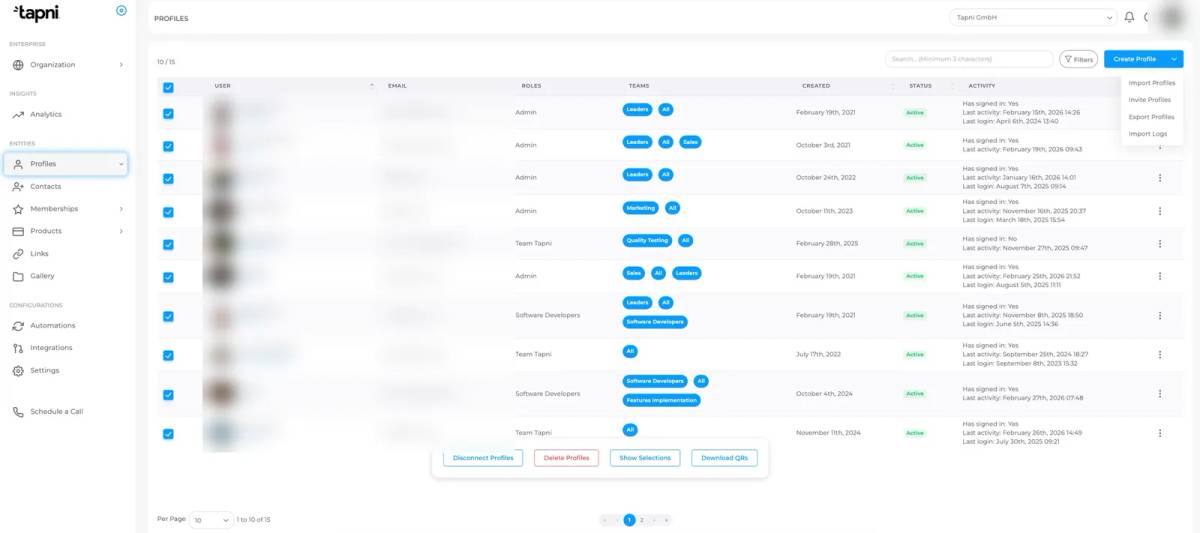
Admins create employee profiles in the Profiles section, then generate a password and send login credentials, so each employee receives an email with access to the app. You can also give the Admin role to anyone else who needs to manage users or templates. Keep that list short: admin rights are for the people who maintain the system, not for everyone who wants to change their own card.
Organise people into teams
Teams are what make a company rollout manageable. Group users by department, location or event (for example Sales, Marketing, HR or a trade show crew). Every user belongs to the default All team, and you can add them to more teams in bulk. Templates and company links are then assigned per team instead of per person. The guide to managing users in bulk shows how to select many profiles at once, assign teams, download QR codes and export profiles to xlsx.
Connect your CRM and directory
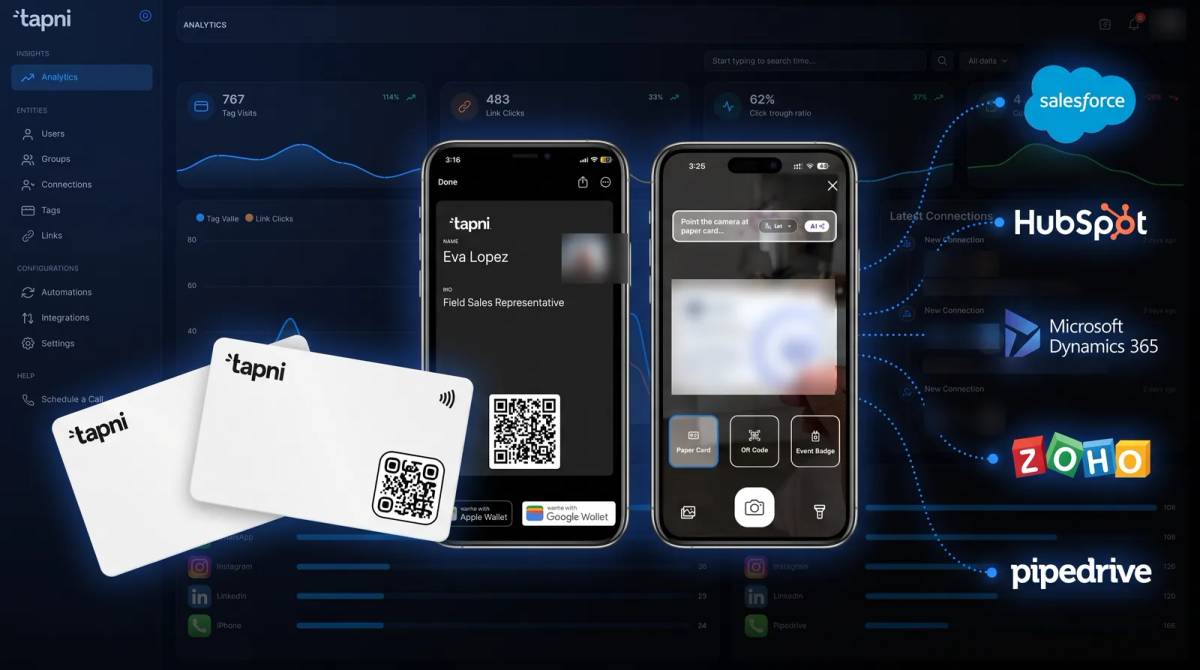
If your sales team lives in a CRM, connect it before launch so new leads go there automatically. Tapni has native integrations for CRMs such as HubSpot, Salesforce, Microsoft Dynamics, Pipedrive and Zoho. Larger organisations that want accounts created and removed from their identity provider should look at the Enterprise plan, which adds SSO and SCIM provisioning, advanced CRM mapping and role-based permissions (see Tapni pricing).
Step 3: Build templates and branding once
Consistency is the main reason companies choose a team platform over individual apps. Set the design up once, centrally, and let the system fill in each person's details.
Use variables, not hardcoded details
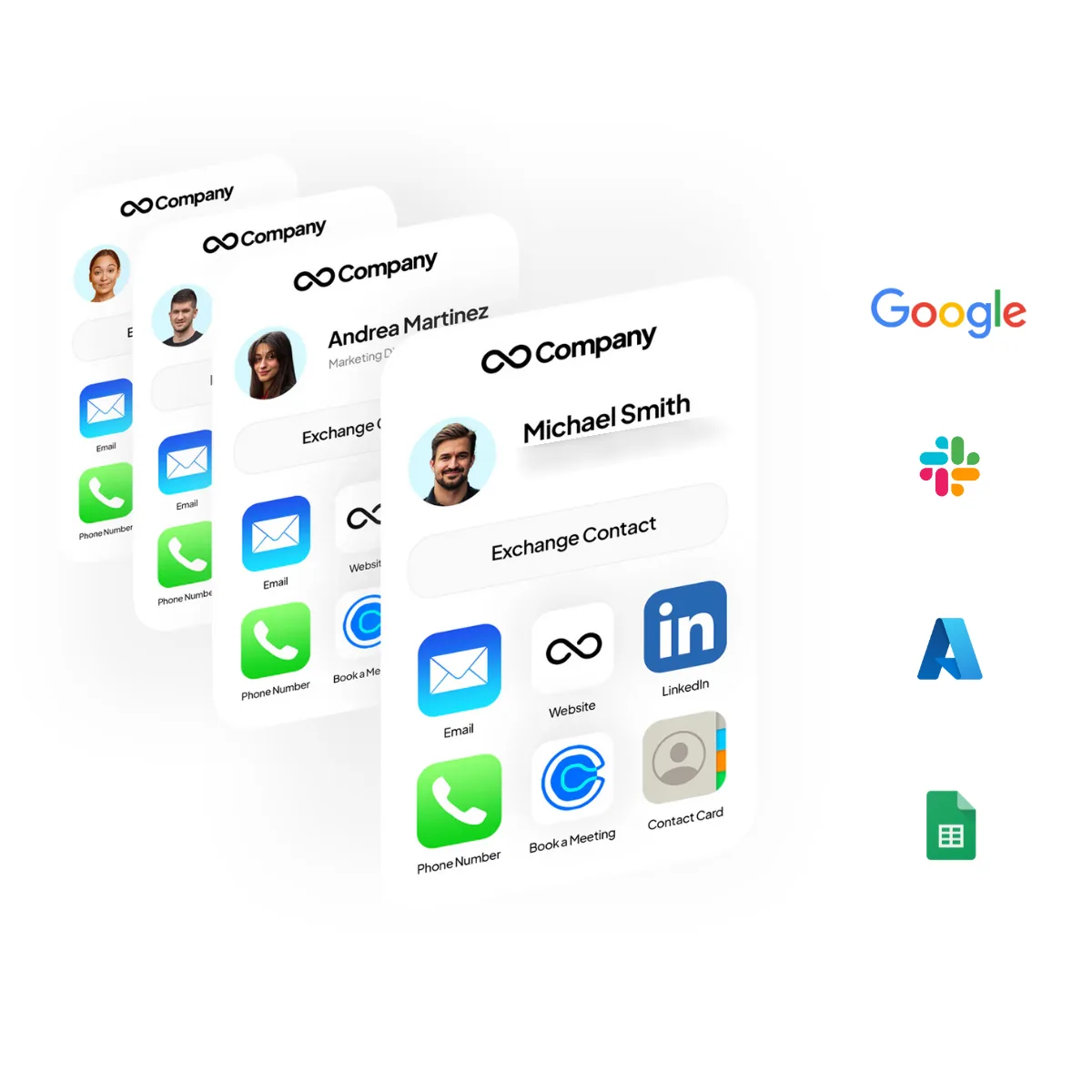
The most common setup mistake is typing the admin's own name or email into a template. Then every employee ends up sharing the admin's details. Tapni templates use variables such as [name], [email] and [vcardTitle], which are filled in from each person's profile once the template is assigned to a team. The same approach works for wallet, email signature, virtual background, phone wallpaper and form templates.
Add company links per team
Company links are links the organisation controls, not the employee: your website, a booking calendar, a product catalogue, a pricing brochure or an event landing page. Assign them to a team and every current member gets them, and anyone added to that team later gets them automatically. A brochure meant only for sales goes to the Sales team, and your website goes to All. You can switch a seasonal or campaign link on and off with one click.
Branded QR codes, a custom domain and email signatures
- QR codes: apply one branded QR template to a whole team and download the codes for badges or event materials.
- Custom domain: profiles can load under your own subdomain (for example card.yourcompany.com) through a CNAME record, instead of a generic link.
- Email signatures: build one signature template with MailSign, assign it to a team, and every member sees it with their own details filled in. More on why this matters in our post on the business card email signature.
Step 4: Onboard employees in one short session
Book a 20 to 30 minute session per team, ideally live, and have everyone finish setup during the call. People rarely come back to it later. Cover these steps:
- Log in to the app with the work email from the invite.
- Complete the profile: name, work email, company, job title and a photo. Missing fields mean missing details on cards, wallet passes and signatures.
- Add the card to Apple Wallet or Google Wallet so it can be shared without opening the app.
- Tap the physical NFC card on a colleague's phone and scan the QR code, so everyone has tried both once.
- Install the email signature and, for anyone who presents online, a virtual background with a QR code.
- Do one practice lead capture: scan a paper card with the AI business card scanner or fill in the contact exchange form.
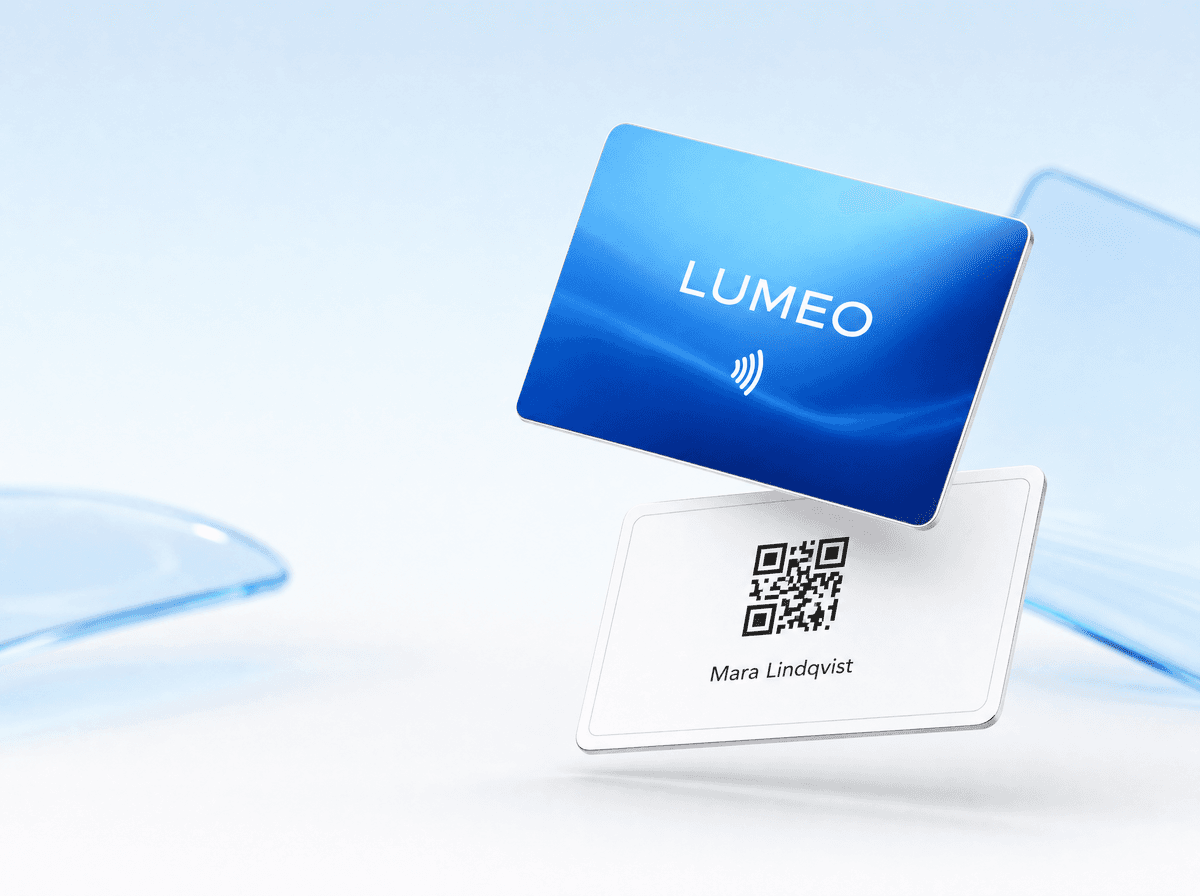
The physical card matters more than people expect. On the Tapni Business plan, each user gets a free NFC card included, priced at $59.90 per user per year (billed yearly), so there is something tangible to hand out on launch day.
Step 5: Adoption tactics that actually work
Adoption is a habit problem, not a training problem. These tactics help the card become the default:
- Put the card where people already are. Wallet pass on the phone, QR code in the email signature, virtual background on video calls. Every touchpoint is a reminder.
- Retire paper on a date. Announce when the last paper card reorder will be. Keeping both options open forever slows adoption.
- Prepare teams before events. Before a conference, check that the event team's profiles are complete, the right event link is active and QR codes are printed on badges or stands.
- Show the follow-up benefit. Salespeople adopt tools that save them work. Show how a captured contact goes straight to the CRM and how reminders help with timely follow-up. Our article on how to stop losing leads covers the most common contact-exchange mistakes.
- Use champions, not pressure. Ask one or two people from the pilot to show colleagues how they use the card in real meetings.
Step 6: Measure usage without micromanaging
You need to know whether the rollout is working, especially in the first 90 days. With Tapni analytics you can see your most active employees and each person's profile views by NFC tap, QR scan and link, with date filters and CSV/XLSX/PDF export.
Use this to spot problems, not to rank people. Look for teams where profiles get few views (often a sign the card isn't in their wallet or signature yet), and for events that brought in new contacts. On the lead side, the Contacts section keeps every collected lead in one place and shows which employee each lead came from. Tags and notes (for example the event name) let you filter leads by event before you export or sync them to your CRM.
Step 7: Offboarding and reassigning cards
Paper cards are lost when someone leaves. With a company-managed digital card, offboarding should take minutes and the company should keep its contacts and hardware.
Reassign the physical card
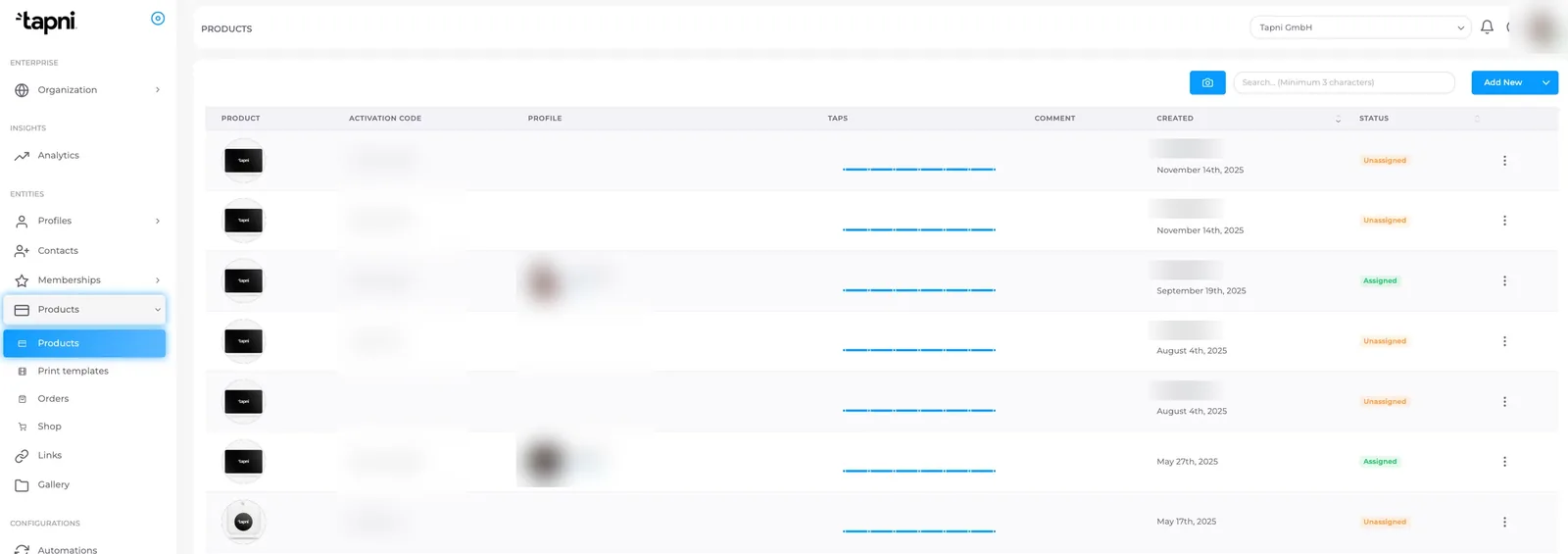
In the Products section of the admin dashboard you can see which cards are assigned and which are unassigned. To move a card, find it, remove the current assignment and enter the new employee's email. Unnamed cards are the most cost-effective option for teams with turnover, because the same card can be reassigned from one employee to another without reprinting. The step-by-step guide is in how to assign and reassign cards.
Remove the profile and keep the process written down
After the card is reassigned, the admin can delete the departing employee's profile from the Profiles section. Before you do, make sure their leads have been exported or synced to your CRM. Add both steps to your HR offboarding checklist so they happen every time, not only when someone remembers.
Digital business card rollout checklist
Copy this table into your project plan. It keeps owners and the "done" definition clear for each phase.
| Phase | Owner | What to do | Done when |
|---|---|---|---|
| Pilot | Rollout owner | Pick one team, set success criteria, run for two weeks | Feedback collected and template fixes listed |
| Admin setup | Admin | Create profiles, send logins, assign admins, create teams | Every employee has an account and a team |
| Integrations | Sales ops / IT | Connect the CRM; plan SSO and SCIM if needed | A test lead appears in the CRM |
| Templates and branding | Marketing | Templates with variables, company links per team, QR template, custom domain, signature | Two test users show their own details, not the admin's |
| Onboarding | Team leads | Live session: profile, wallet pass, NFC and QR test, signature, practice lead | Profiles complete for the whole team |
| Adoption | Rollout owner | Paper retirement date, event prep, champions | The card is used at the next event or client meeting |
| Measurement | Rollout owner | Review analytics and leads monthly for the first 90 days | Gaps found and fixed by team |
| Offboarding | HR + admin | Sync or export leads, reassign the card, delete the profile | Step added to the HR offboarding checklist |
FAQ
How long does it take to roll out digital business cards to a company?
For most teams, plan on about a month: two weeks for the pilot, a few days for admin setup and templates, and one onboarding session per team. Bulk actions in the admin dashboard mean the setup time doesn't grow much with team size.
Do the people we meet need an app to receive the card?
No. The recipient taps the NFC card or scans the QR code with their phone and the profile opens, so they don't need to install anything. Employees can also share from Apple Wallet or Google Wallet, or with NameDrop on iOS.
What happens to the card when an employee leaves?
An admin removes the current assignment and assigns the card to another employee by email, so the physical card can be reused. The admin can then delete the old profile. Export or sync their leads to your CRM first.
Can every employee have the same branding?
Yes. Templates are assigned per team and use variables, so the design stays the same for everyone while each card shows that person's own name, title and contact details. Company links and the email signature can be assigned per team in the same way.
How much does a digital business card for companies cost?
Prices vary by provider and team size. Tapni Business costs $59.90 per user per year, billed yearly, and includes a free NFC card and Tapni Pro for each user. Larger organisations can contact sales about the Enterprise plan.
Plan your team rollout with Tapni
A rollout that sticks comes down to one owner, a short pilot, templates built once, a hands-on onboarding session and a clear offboarding step. If you want help planning yours, see Tapni for Business or book a 30-minute demo with the team.